What Planning Center offers (and what it doesn't)
Planning Center Services has no true two-way swap — no "I take your week, you take mine." What it has is volunteer replacements: when someone declines, they can hand the spot directly to an eligible teammate instead of dropping it on the floor. That covers the most common case, with real constraints worth knowing before you rely on it.
Turn on volunteer replacements
It's configured per team: open the team's settings and find the Rescheduling Declines section. It offers five strategies for what happens when someone declines — Do not reschedule, Manually reschedule (the default: a needed position is created for a scheduler to fill), Volunteer Replacement, Auto-Schedule (PCO's auto-scheduler sends a request to the next best person), and Signup Sheet (the open spot is posted for self-signup). Select Volunteer Replacement.
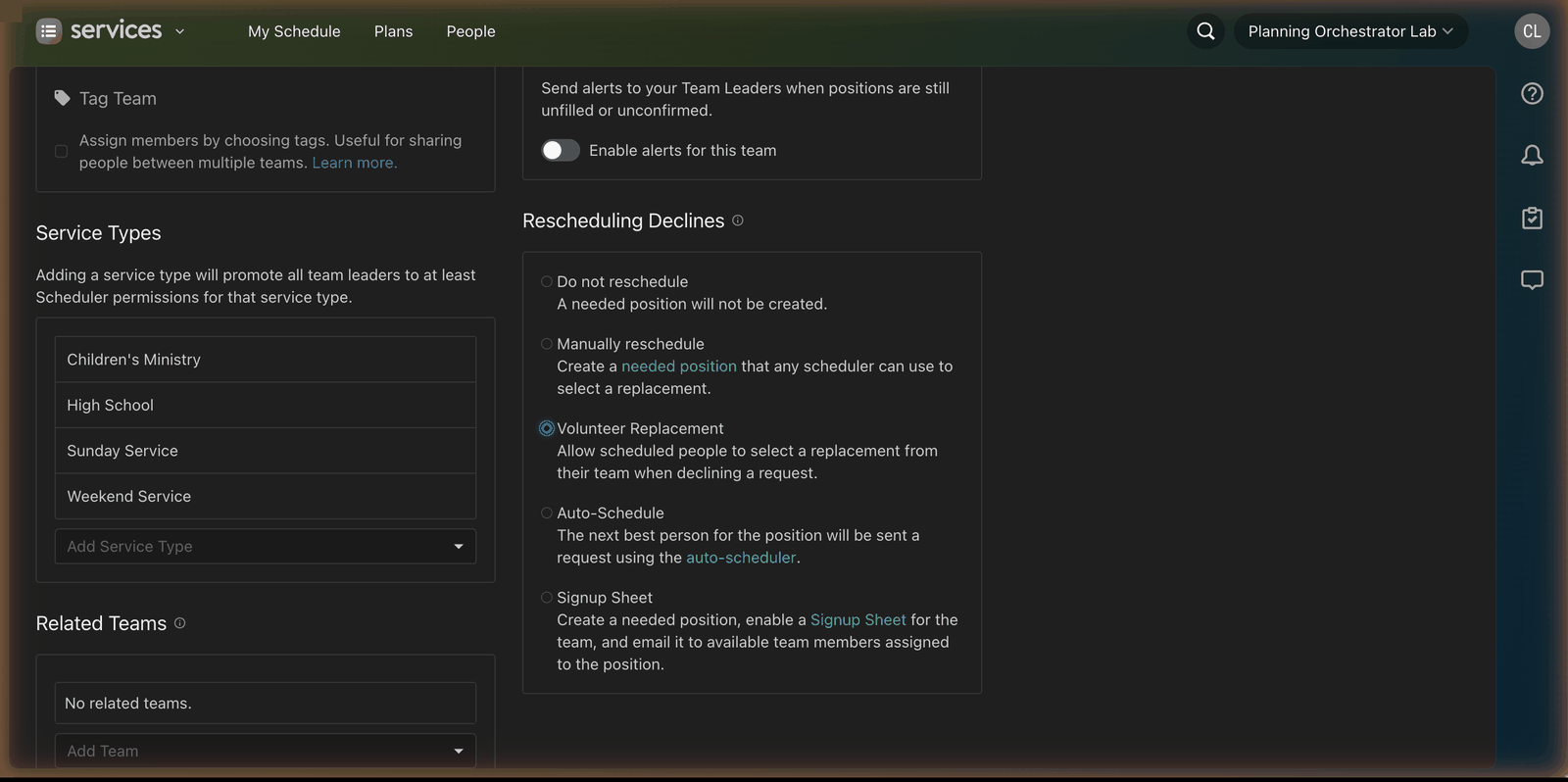
From then on, any volunteer declining a request from that team gets the option to pick their own cover — on the web, the Services app, and Church Center.
What the volunteer does
- On My Schedule, in the Pending section, they decline — hover for the red X on the web, or tap Decline… in the app. (Multiple dates can be declined at once with Decline all, or split into per-date decisions.)
- Planning Center shows a list of eligible teammates who share the same position, filtered for scheduling conflicts.
- They pick a person and must check a confirmation box — "I've confirmed with [Name] that they can cover this" — which can't be skipped. Planning Center expects the two volunteers to have actually talked first.
- The replacement is added to the plan as Confirmed immediately, the decline finalizes, the replacement gets a push notification and email, and the team leader is notified.
The confirmation box is doing heavy lifting. Choosing someone confirms them instantly — no request, no accept step. If the declining volunteer checks the box without truly asking first, you have a "confirmed" person who doesn't know they're serving. Teach your teams: text first, tap second.
When the list comes up empty
If every eligible teammate has a conflict, the volunteer sees "No available teammates were found. Your team leader has been notified." The decline goes through, a needed position opens on the plan, and the hunt is yours again — texting down the roster, checking blockouts by hand, usually inside the final week.
What about real swaps?
For a genuine trade — "you take the 9am this week, I'll take yours next month" — the manual choreography is: volunteer A declines (or you remove them), you schedule volunteer B in the slot, then separately schedule A into B's future date, and both get notified. It works, but it's four admin actions and two notifications for something the volunteers already agreed on between themselves. Most coordinators just do it live in the matrix when the texts come in.
Keeping replacements from becoming your job again
- Enable replacements on every team where volunteers know each other — it resolves the easy half of declines with zero admin work.
- Watch the eligibility rule: the list only shows people who share the position. Thin positions (one drummer, one ProPresenter operator) will almost always come up empty — those declines come straight to you, so build the bench or expect the Saturday text.
- Set decline follow-up expectations: a decline with no replacement should trigger your backfill playbook the same day (our declines guide covers the full sequence).