What the matrix actually is
A single plan page shows one service. The matrix shows many plans side by side — a grid with your teams and positions down the left and service dates across the top. It's the only place in Planning Center Services where you can see and edit a whole month (or quarter) of scheduling at once, which makes it the right tool for building schedules ahead instead of week-by-week firefighting.
Opening the matrix
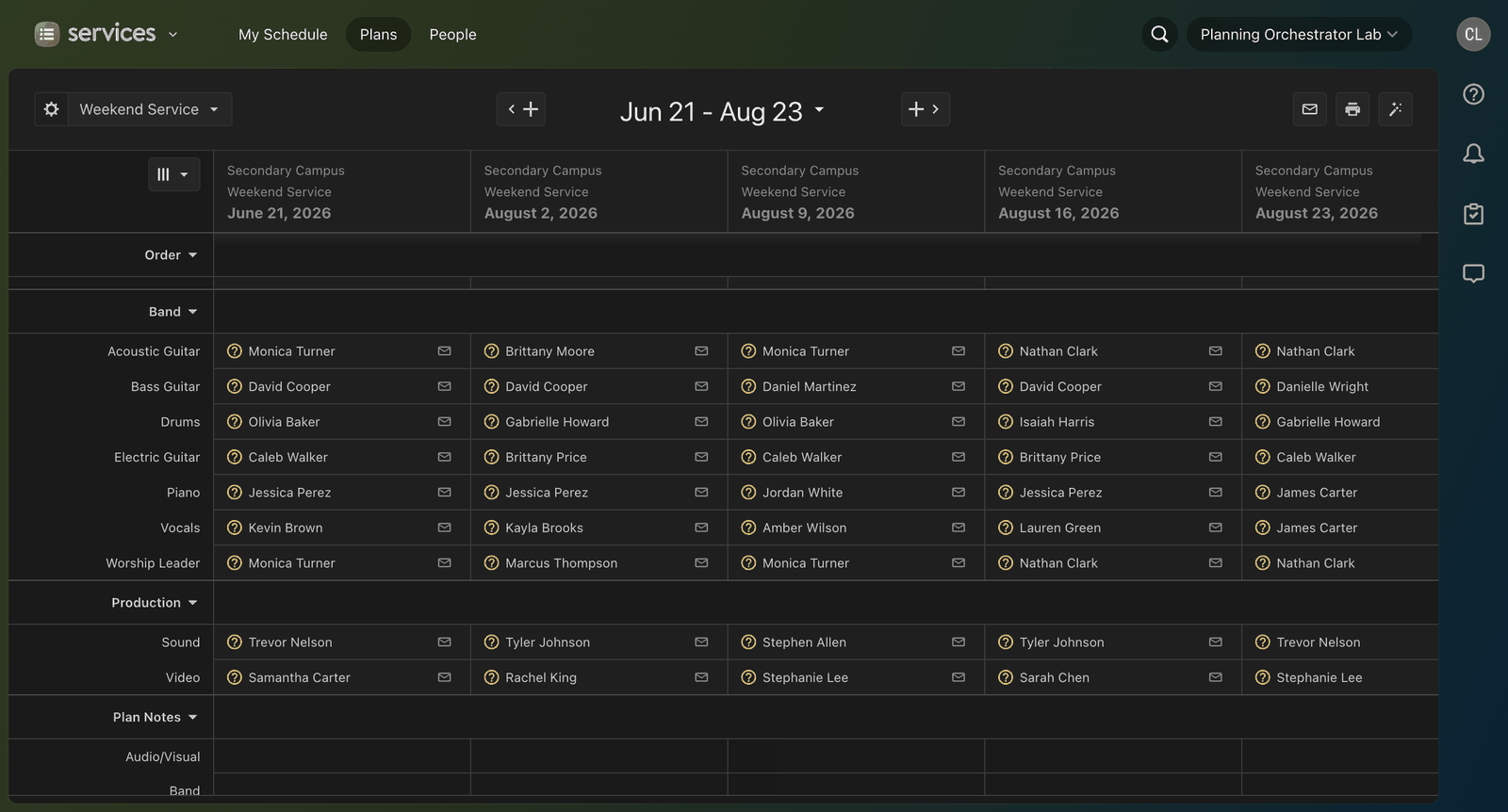
There are four ways in, and they differ in which plans get loaded:
- From a plan — select the dropdown next to the Matrix button, pick the plans you want alongside it, then select Matrix.
- From a service type — use the Matrix dropdown to load plans relative to today (say, the next six Sundays of your main service).
- From a folder — loads plans across every service type in that folder. This is the multi-ministry view: Sunday Service, Children's Ministry, and High School side by side.
- Keyboard shortcut — hover over any plan in a list and press M to open the matrix with that plan as the base.
Set it up once so it loads right every time
Select the ⚙️ settings icon in the top left of the matrix. Three tabs control what a fresh matrix shows:
- Plans — how many previous and upcoming plans load (set by quantity or date range). You can also nudge this live with the + / − icons.
- Templates — which templates appear alongside real plans, so you can copy from a template column straight into live dates.
- Sections — checkboxes to hide whole sections (announcements, items) you don't schedule from.
If you schedule the same set every week, make a custom matrix: select the matrix title next to the settings icon, choose New Custom Matrix, and configure the same three tabs. Next time it's one click to load exactly your view.
Known quirk: Planning Center warns that keeping the matrix open in more than one browser window at once can cause errors. One matrix window at a time.
The three view modes
The layout button (top left) switches between:
- Default — full columns, most detail.
- Condensed — shrinks each plan column so more dates fit on screen. Worth it the moment you have more than five plans loaded.
- Show All Positions — displays every position on the team, not just ones with unfilled needed slots. Use this when you're auditing coverage, not just filling holes.
Scheduling people from the matrix
Two core moves:
- Drag and drop — drag a person's name from one plan column into another to schedule them there too. This is how you extend someone's rotation across a month in seconds.
- Fill a needed position — select the [N] Needed badge in a team section, choose a person from the roster, and confirm with Add.
To change how many slots a plan needs, hover over the team name header, select the arrow that appears, choose Needed Positions, adjust, and Save.
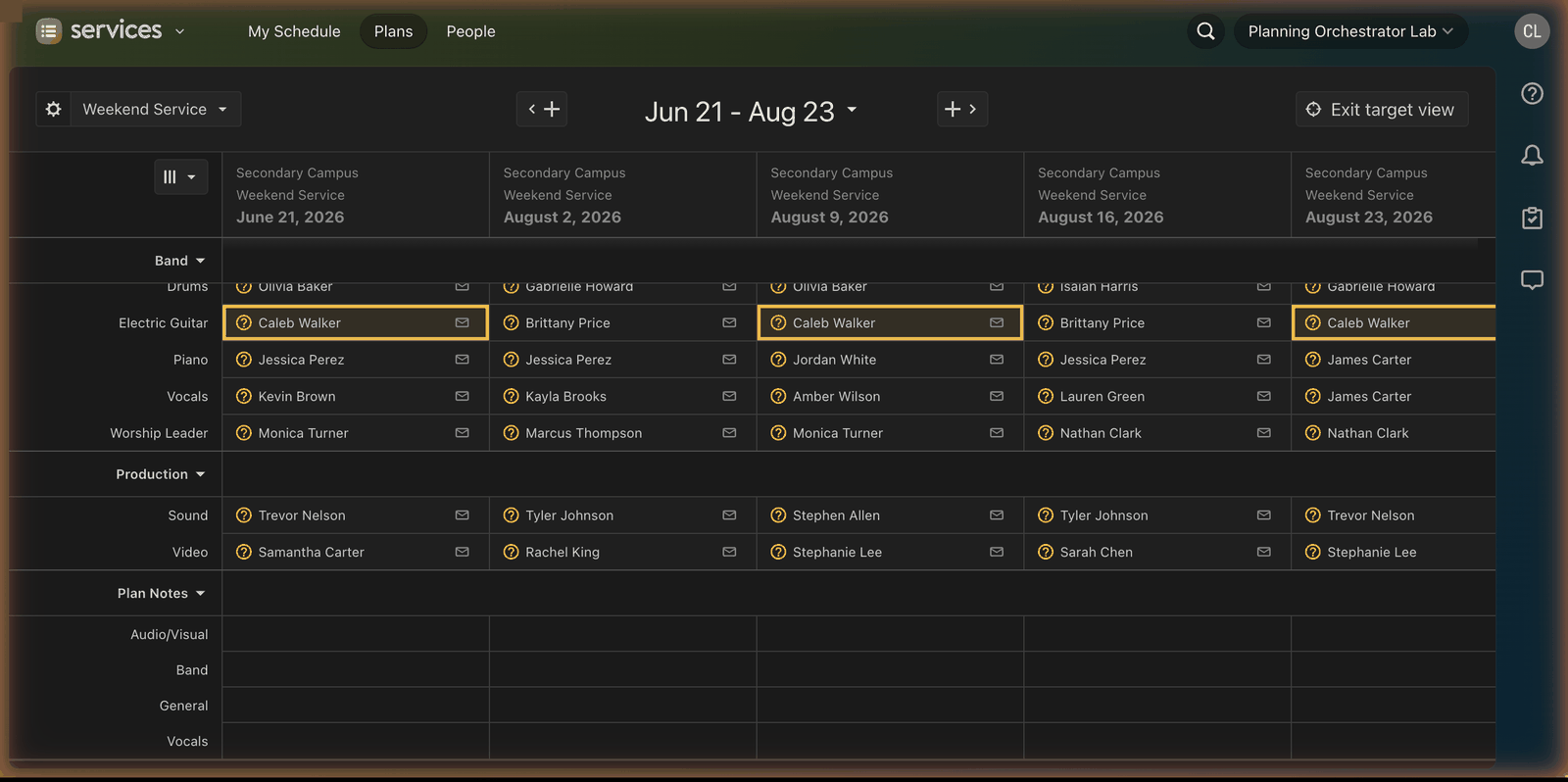
The target icon is the matrix's best-kept secret: select it on any person and every instance of them across the whole matrix highlights in yellow. That's your instant answer to "wait, how many times have I scheduled Sarah this month?"
Notifications: the part everyone gets wrong
Scheduling someone in the matrix does not email them immediately — it prepares a notification. When you're done laying out the month, select the ✉️ email icon (top right) to send each person one consolidated email with all their scheduled dates, which they can accept or decline date by date.
This is a feature, not a bug — batch your scheduling, then send once. The trap is forgetting the send step entirely: positions look filled in the matrix, but every one of them is silently Unconfirmed and nobody knows they're serving. If your matrix session ends without the envelope step, your schedule doesn't exist yet.
A practical monthly rhythm
- Load a custom matrix with the next 4–6 plans of your service type.
- Switch to Show All Positions and audit coverage before filling.
- Fill by rotation first (drag existing people forward), then handle the [N] Needed badges.
- Use the target icon on your most-scheduled people to check the spread.
- Send the consolidated notifications — same session, before you close the tab.
- Diarize the follow-up: unconfirmed chase starts a few days later (see our scheduling guide for the full cadence).
Where the matrix stops helping
The matrix is a superb editor, but it doesn't make decisions. It won't tell you who's over-serving, who declines when paired with an early service, or who should be first call for an open Sunday — you carry all of that in your head while you drag names around. And once the notifications go out, the matrix's job is done: the chase — unconfirmed nudges, declines, last-minute replacements — is back to manual work spread across the next three weeks.
Planning Center's own auto-schedule picks up some of that slack — enough for a lot of churches. We mapped what the built-in automation actually covers and where it stops, so you can tell which half of the problem you still own.