How Signup Sheets work
Signup Sheets are built on needed positions. You tell Planning Center a plan needs six ushers; volunteers who hold the Usher position see those open spots on their My Schedule page (web, Services app, or Church Center) and claim them with a Sign up button. No request, no waiting on you — they schedule themselves.
Two prerequisites hide in that sentence: the plan must have needed positions set, and the volunteer must already be assigned to that position on the team. Signup Sheets are only ever visible to existing team members of the needed position — they are not a public signup form.
Enable signups for one plan
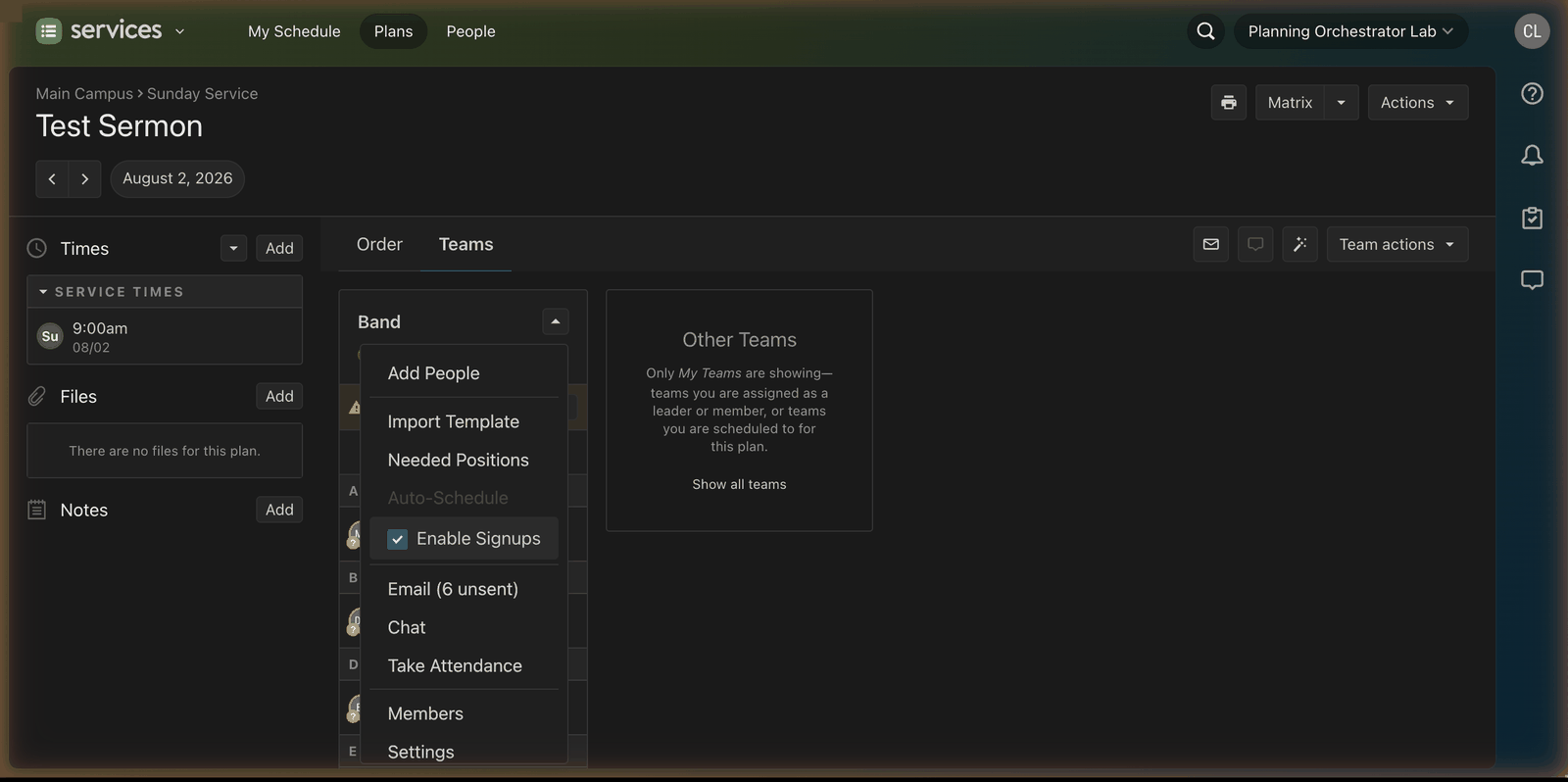
- Go to the Plans page and open the plan.
- Select the Teams tab.
- Select the dropdown arrow next to the team's name.
- Check Enable Signups.
Volunteers on that team's needed positions will now see the open spots on My Schedule.
Enable signups automatically for future plans
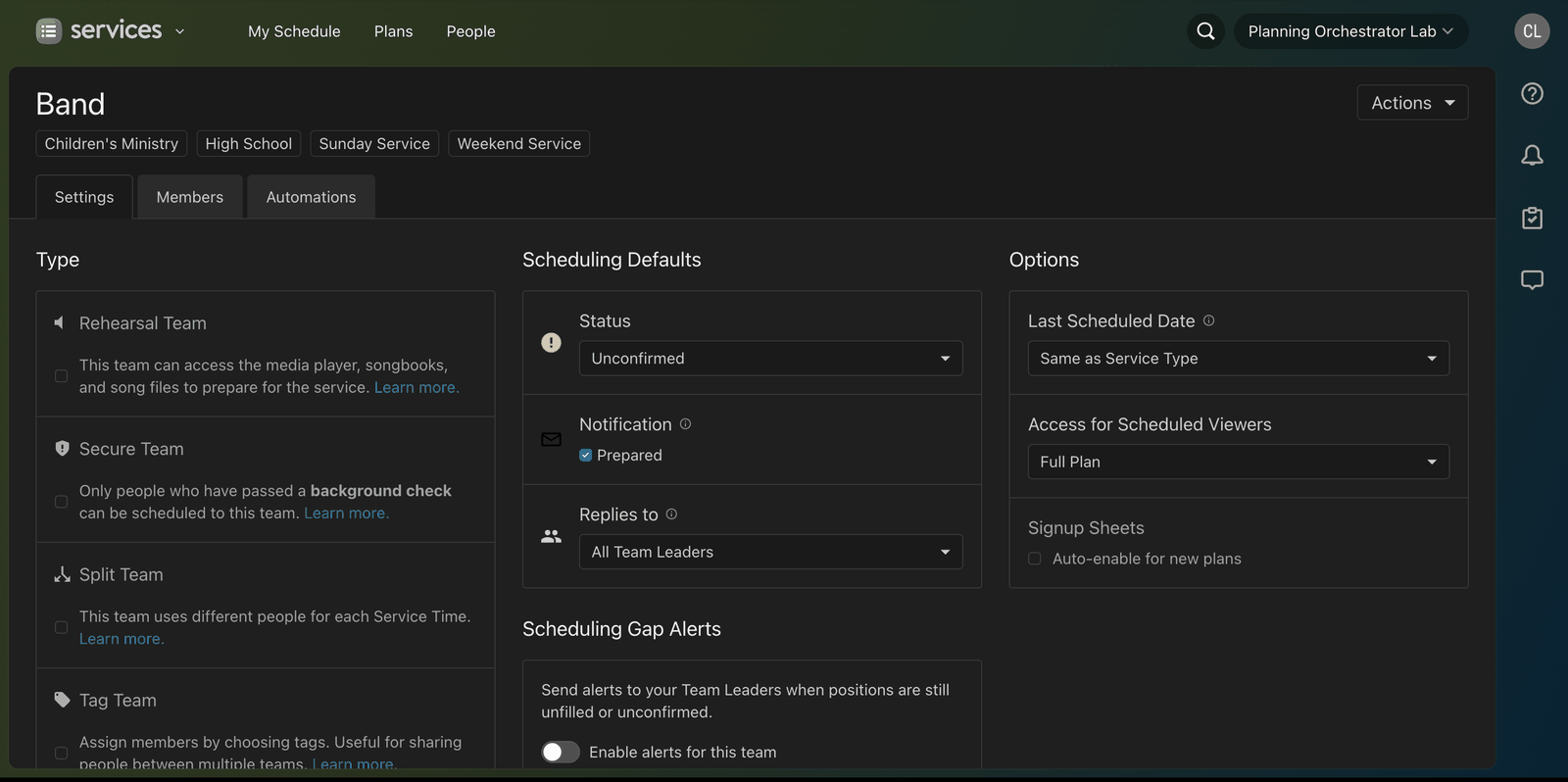
Per-plan toggling gets old fast. In the team's settings, under Options, check Signup Sheets → Auto-enable for new plans — every plan created from then on has signups live. Note the fine print: it applies to subsequently created plans only, so existing future plans still need the manual toggle.
If you build services from templates, bake it in there instead: Plans page → ⚙️ settings icon next to the service type → Templates → open the template → Teams tab → dropdown next to the team → check Enable Signups. Every plan imported from that template arrives with signups on.
Tell your volunteers the sheet exists
Volunteers don't get notified automatically when spots open — you announce them:
- Open the plan and select the Teams tab.
- Select the ✉️ email icon (top right) and choose Signup Sheets.
- Pick the teams (schedulers can only email teams they lead), select Next, edit the message, and hit Send.
Notification trap: to hear about signups as they happen, the team's default replies must go to All Team Leaders or a named leader. If it's set to Current Scheduler, signup notifications don't reach anyone — spots fill (or don't) in silence.
What volunteers see
On My Schedule, eligible volunteers get a signup view with the service date and times, time commitments, conflicts with their existing schedule, and who else is already serving. Claiming a spot schedules and confirms them in one step. Families can sign up to serve together — or flag that they'd rather not serve the same service.
Where self-signup breaks down
An honest list, because this is the part the announcement blog posts skip:
- It's first-come, first-served. Your most eager volunteer gets the spot, not your best fit for it. There's no ranking, no fairness spread — the person who's already served three times this month can claim a fourth before your rested Tier-1 ever opens the app.
- It only reaches people who look. Signup Sheets wait passively on My Schedule. The volunteers who'd say yes if asked — the majority, in most teams — never see them without your announcement email, and announcement emails decay fast.
- The stragglers are still your job. Whatever doesn't get claimed becomes a needed position you're filling manually anyway, usually closer to Sunday than you'd like.
- Team members only. No path for the "I'd help if someone asked me" person who isn't on the position yet.
- Display cap. Sheets show volunteers at most the first 100 open spots — a real ceiling for multi-campus churches opening a season at once.
Signup Sheets are genuinely good for self-motivated teams with deep benches — worship teams with healthy rotations, hospitality teams that like picking their own weeks. They're weakest exactly where scheduling hurts most: thin teams, passive volunteers, and the last unfilled spot on Saturday.